
 GuessPick Team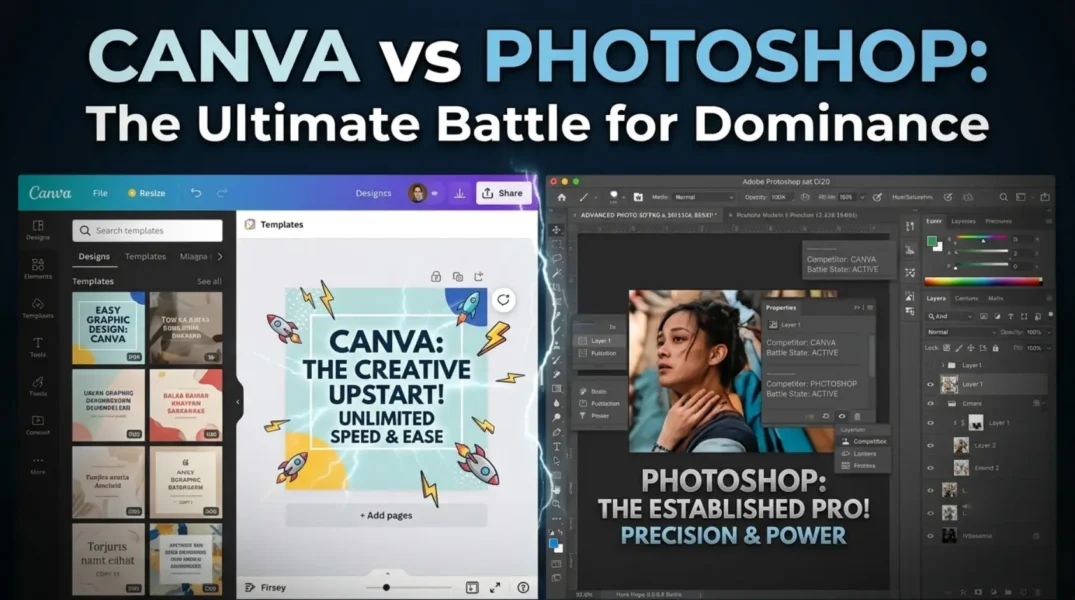
Last updated: September 2026. Written and fact-checked by GuessPick Editorial Team. This article compares Canva and Adobe Photoshop based on product research, feature analysis, usability, and practical design considerations. The goal is to help readers choose the right tool for their specific needs. This article contains no sponsored placements. Canva and Adobe were not consulted, and neither tool is being promoted over the other.
Quick Decision
- Beginners: Canva
- Social media: Canva
- Templates: Canva
- Presentations: Canva
- Quick marketing designs: Canva
- Advanced photo editing: Photoshop
- Professional retouching: Photoshop
- Detailed image manipulation: Photoshop
- Complex image compositions: Photoshop
- Easiest learning curve: Canva
- Maximum image-editing control: Photoshop
The best design tool isn’t the one with the longest feature list. It’s the one that lets you finish the work without making the process harder than it needs to be.
Choosing between Canva and Photoshop isn’t as simple as asking which software is “better.”
Both tools can help you create images, edit photos, and make designs, but they’re built for different kinds of work. Canva is built around templates, simplicity, and quick content creation. Photoshop gives you far more control over images: layers, colour correction, retouching, and detailed editing.
So which one should you use?
In my own work, I’ve used Canva to turn around a week’s worth of social posts before a client meeting, and I’ve used Photoshop the same afternoon to retouch the product photography that ended up inside those posts. That’s the short version of this whole guide: choose Canva if you want to design quickly and don’t have much design experience. Choose Photoshop if you need detailed photo editing, advanced image manipulation, or professional-level control.
For many people, the honest answer is to use both. Canva handles everyday content; Photoshop handles the jobs that need more precision.
Let’s compare Canva vs Photoshop based on the work you actually need to do.
Canva vs Photoshop at a Glance
| Feature | Canva | Photoshop |
|---|---|---|
| Best for | Quick designs and everyday content | Advanced photo editing and detailed design |
| Ease of use | Very easy to learn | Takes more time to learn |
| Templates | Large template library | Fewer built-in design templates |
| Photo editing | Basic to moderate | Advanced |
| Layers and masks | Limited compared with Photoshop | Advanced |
| Social media designs | Excellent | Good, but takes more work |
| Presentations | Excellent | Not its main purpose |
| Brand content | Very easy | More manual |
| Professional photo retouching | Limited | Excellent |
| Print design control | Good for many simple jobs | Better for advanced work |
| Team collaboration | Strong | More focused on creative production |
| Device requirements | Works well on basic devices | Needs a more capable computer for demanding work |
| Learning curve | Low | High |
| Best for beginners | Yes | Not usually |
| Advanced creative control | Limited | Excellent |
What Is Canva?
Canva is an online design platform built for people who want to create visual content without spending weeks learning design software.
You can start from a blank canvas or a template, then add text, photos, shapes, icons, videos, and other elements. Its drag-and-drop approach makes it possible to produce a usable design even with little to no design background.
Canva is commonly used for:
- Social media posts
- Instagram stories
- YouTube thumbnails
- Presentations
- Posters
- Flyers
- Simple brochures
- Invitations
- Business graphics
- Basic videos
- Marketing materials
- Simple brand content
Canva’s biggest advantage is speed. Instead of building a design from nothing, you start from an existing layout and adapt it, which is exactly why small businesses, students, teachers, marketers, and content creators who need to produce work regularly tend to gravitate toward it.
Where Canva Falls Short
The same simplicity that makes Canva easy to pick up becomes a limitation once you need very fine-grained control.
A professional photo editor, for instance, often needs precise masking, complex selections, or detailed retouching on individual parts of an image. That’s Photoshop’s territory, not Canva’s.
Canva is designed to get you a good result quickly. Photoshop is designed to give you deep control over how you get there.
Downlord Canva Go with this link:
What Is Photoshop?
Adobe Photoshop is professional image-editing software used for photo editing, retouching, compositing, and graphic design.
Unlike a template-first tool, Photoshop gives you control over individual parts of an image. You work with layers, masks, selections, adjustment layers, and brushes to change an image in fine detail.
Photoshop is commonly used for:
- Professional photo retouching
- Product photography
- Image manipulation
- Removing unwanted objects
- Background editing
- Photo compositing
- Digital artwork
- Detailed advertising graphics
- Colour correction
- Web graphics
- Print-ready image work
Photoshop also includes AI-powered tools that can remove or add objects and extend an image. According to Adobe, current Photoshop plans include generative AI features and are available on desktop, web, and mobile. It’s worth checking directly on Adobe’s site, since these offerings are updated fairly often.
Where Photoshop Gets Difficult
Photoshop gives you a lot of options, and that means there’s more to learn.
A first-time user can open Photoshop and be met with a wall of tools, panels, layers, and menus with no obvious starting point. The basics aren’t especially hard to pick up, but real comfort with the software takes time and repetition.
If all you need is a social post or a simple flyer, learning Photoshop is probably more effort than the task calls for.
Downlord Photoshop Go with this link:
Canva vs Photoshop: The Main Difference
The simplest way to frame it:
Canva helps you make a design quickly. Photoshop helps you control an image in detail.
Say you need a promotional post for a new product.
With Canva, you’d pick a social template, swap in your product photo, adjust the colours, add your logo, and edit the text: something usable in minutes.
With Photoshop, you’d build the same design from scratch with far more control over the image itself: adjusting lighting, removing objects, building masks, blending multiple images, and refining details Canva simply won’t let you touch.
Neither approach is automatically better. The right choice depends on how much control the job actually needs.
Canva vs Photoshop for Beginners
If you’ve never touched professional design software, Canva is almost always the easier starting point.
Its interface is built around simple, direct actions (select an element, move it, resize it, restyle it) without requiring any advanced design knowledge.
Photoshop’s toolset is much larger. That’s an asset once you need it, but it can feel overwhelming on day one.
Winner for beginners: Canva. If your goal is to produce attractive graphics fast, start there. If your goal is to become a professional photo editor or learn image editing properly, Photoshop is worth the longer learning curve.
Canva vs Photoshop for Photo Editing
This is one area where Photoshop has a clear, unambiguous edge.
Canva can handle plenty of everyday edits: cropping, basic adjustments, filters, background removal. But Photoshop goes considerably further: layers and masks, detailed selections, spot retouching, colour grading, object removal, and compositing multiple images into one.
In practice, if you’re doing anything a client would call “retouching” rather than “editing,” you’ll hit Canva’s ceiling fast.
Winner for photo editing: Photoshop. If you just need a brighter photo cropped into a social template, Canva is enough. If you need to change the photo itself, use Photoshop.
Canva vs Photoshop for Social Media
For ongoing social media work, Canva is usually the more convenient tool.
Social media managers and small businesses often need several designs a week, in multiple sizes, with consistent colours, fonts, and logos: exactly what Canva’s templates and brand kits are built for.
Photoshop can produce excellent social graphics too, but expect to spend more time setting each one up from scratch.
Winner for social media: Canva, especially when speed and consistency matter more than pixel-level image editing. Photoshop earns its place when the graphic depends on advanced photo manipulation.
Canva vs Photoshop for Professional Graphic Design
This one needs a bit of nuance.
If “graphic design” means social posts, everyday marketing graphics, and presentations, Canva can carry a lot of that load.
If it means detailed image composition, advanced manipulation, advertising artwork, or anything that needs total control over every element, Photoshop is the stronger tool, because it gives designers control at the individual-element level in a way templates can’t replicate.
Winner for advanced design work: Photoshop. Canva is better for quick production; Photoshop is better when the design itself demands detailed image work.
Canva vs Photoshop for Templates
Canva has a clear edge here.
You can search for a design type and start from an existing layout instead of a blank page, a big part of why beginners can produce usable work so quickly.
Photoshop is much less template-driven. You can find templates and assets through Adobe’s broader ecosystem, but the standard Photoshop workflow puts more of the design responsibility on you.
Winner for templates: Canva. If your instinct is “I just need something good that I can edit,” Canva is the easier path.
Canva vs Photoshop for Brand Design
Canva is genuinely useful for businesses that need multiple people producing on-brand content: a marketing team can lock in colours, fonts, logos, and templates, and let anyone on the team pull from that shared kit.
Photoshop gives a single designer more control over the finished artwork, but keeping a simple, repeatable workflow across a large volume of everyday designs takes more manual effort.
Winner for everyday brand content: Canva. For high-end brand artwork and advertising imagery, Photoshop still tends to win.
Canva vs Photoshop for Print
Both tools handle print work, but the type of project matters.
Canva is well suited to simpler jobs:
- Flyers
- Posters
- Invitations
- Basic brochures
- Simple business materials
For more demanding print work, where colour profiles, resolution, and layered files matter, Photoshop gives you far more control over the image itself. If the project also involves complex multi-page layout, you may need a dedicated layout tool rather than either Canva or Photoshop.
Winner for advanced print image work: Photoshop. For a quick printable design, Canva is faster; for professional image preparation, Photoshop is the safer choice.
Canva vs Photoshop for Background Removal
Both tools can remove backgrounds.
Canva makes it simple: upload the image, hit the background removal tool, and keep working. Photoshop gives you more control when the automatic result needs fixing, which matters a lot with fine hair, complex edges, or areas that need manual restoration.
Winner: Photoshop for control, Canva for speed. Quick cutout: Canva. Careful edge refinement: Photoshop.
Canva vs Photoshop for AI Features
AI is part of both platforms now, but the way each uses it is different.
Canva leans into making AI-assisted design available inside a simple workflow, useful when you want help creating or altering content without a complex editing process.
Photoshop’s AI tools are more image-editing-focused. Adobe’s current Photoshop lineup includes Generative Fill and Generative Expand alongside other AI-assisted editing features, and Adobe updates these often enough that it’s worth checking their site for the current state.
The real question isn’t which tool has “more AI.” It’s what you want the AI to help you do. Want help building a social graphic? Canva feels more natural. Want to change the actual contents of a photograph while keeping precise control? Photoshop is the better fit.
Canva vs Photoshop for Teamwork
Canva is strong when multiple people need to work inside one shared design system: one person on social posts, another on presentations, another on marketing material, all pulling from the same brand kit.
Photoshop is more commonly used inside a professional creative pipeline, where designers work on detailed files and hand off finished or editable assets as needed.
Winner for simple team content: Canva. For teams producing high volumes of everyday marketing material, it saves real time. For professional creative teams working on detailed image files, Photoshop remains essential.
Canva vs Photoshop: Learning Curve
This is one of the starkest differences between the two.
Canva: You can learn the basics almost immediately. No need to understand layers, masks, or colour channels before making your first design.
Photoshop: The basics come fairly quickly too, but there’s a lot more beyond them: layers, masks, selections, retouching, colour correction, compositing, and more, each with its own learning curve.
Winner for ease of learning: Canva. Winner for depth: Photoshop. Photoshop’s longer curve isn’t a flaw. It’s the trade-off for the control it gives you.
Canva vs Photoshop: File Formats and Editing Control
Canva is built around a simple online workflow: export in common formats, and you’re done.
Photoshop is built around editable image projects. Its native PSD format keeps layers and editing history intact inside the file, which matters if you’ll come back later to make detailed changes. A photographer, for example, may want the original image plus every adjustment layer and mask still editable months later. For a single social post, a final PNG or JPG from Canva is often all you need.
Winner for advanced editing control: Photoshop. Winner for simple export and sharing: Canva.
Canva vs Photoshop: Which Is More Affordable?
Pricing shifts based on plan, region, promotions, and whether you’re buying individually or for a business, so treat any number here as a snapshot, not a guarantee.
Canva offers a free tier, with paid plans adding templates, assets, and brand tools. Photoshop is sold through Adobe subscription plans rather than as a one-time purchase, available as a standalone product or bundled into larger Creative Cloud plans.
Check Adobe’s and Canva’s official pricing pages before buying, since both change fairly often.
Price shouldn’t be the only factor, though. If Photoshop saves you hours of professional photo editing, the cost is easy to justify. If you only need social posts and presentations, paying for advanced photo tools probably isn’t worth it.
Canva vs Photoshop: Device and Internet Needs
Canva is primarily an online tool, which suits people who move between devices and don’t want to install a heavy creative application.
Photoshop has traditionally been desktop-first, though Adobe now offers it across desktop, web, and mobile. For demanding Photoshop projects, your hardware still matters, since advanced image editing can be resource-intensive.
That makes Canva the better fit on a basic laptop or Chromebook, and Photoshop the better fit once you have a capable machine and need its full toolset.
Canva vs Photoshop: Which One Should You Choose?
Choose Canva if you:
- Are new to graphic design
- Need designs quickly
- Create social media posts
- Make presentations
- Create simple marketing materials
- Need lots of templates
- Work with a marketing or content team
- Want an easy drag-and-drop editor
- Regularly create different versions of the same design
Choose Photoshop if you:
- Edit photographs professionally
- Need detailed image manipulation
- Work with layers and masks
- Retouch product or portrait photographs
- Create complex image compositions
- Need precise control over an image
- Work with professional photography files
- Want to learn advanced image editing
- Create artwork that can’t easily be made from a template “check out our latest guides and resources.”
Can You Use Canva and Photoshop Together?
Yes, and in my experience this is often the most practical setup, not a compromise.
You don’t have to pick one tool for everything. A small business might use Photoshop to prepare and refine product photography, then bring those finished images into Canva to build social posts, presentations, and marketing graphics around them. A content creator might edit a photo in Photoshop, then use Canva to spin up several platform-specific versions of it.
This works because the two tools are solving different problems: Photoshop is the detailed image editor, Canva is the fast content-design tool.
Frequently Asked Questions
Is Canva as good as Photoshop? Not for the same jobs. Canva is faster and easier for templates, social posts, and everyday marketing graphics. Photoshop is far more capable for detailed photo editing, retouching, and image manipulation. Neither replaces the other; they’re built for different levels of control.
Can Canva replace Photoshop? For most everyday design tasks, yes. But Canva can’t match Photoshop’s layers, masks, and retouching tools, so if your work depends on detailed photo editing, you’ll still need Photoshop.
Can Photoshop replace Canva? Technically you can build anything in Photoshop that you’d build in Canva, but it will take longer. Canva’s templates and drag-and-drop workflow are built for speed, which Photoshop doesn’t try to match.
Is Canva good enough for a small business? Yes, for most day-to-day content: social posts, flyers, presentations, and simple brand materials. If the business also needs professional product photography or advanced retouching, Photoshop (or a designer using Photoshop) fills that gap.
Do I need to learn Photoshop if I already use Canva? Only if your work starts requiring things Canva can’t do, like detailed masking, colour correction, or compositing multiple images. Many people use Canva for years without ever needing Photoshop.
Which is cheaper, Canva or Photoshop? Canva has a usable free plan, and its paid tiers are generally less expensive than Photoshop’s subscription. Photoshop is sold through Adobe’s subscription plans, either standalone or as part of Creative Cloud. Check both companies’ current pricing pages, since plans and promotions change.
Can I use Canva and Photoshop together? Yes, and it’s a common workflow. Many people edit and retouch photos in Photoshop, then bring the finished images into Canva to build social posts, presentations, or marketing materials around them.
Is Photoshop worth learning if I’m not a professional photographer? It depends on what you’re trying to make. If you regularly need to remove objects, retouch images, or build detailed compositions, Photoshop is worth the learning curve even outside professional photography. If your needs stay at the level of social graphics and simple flyers, Canva alone is usually enough.


Sign in to share your opinion
Sign in with Google