
 toolsvale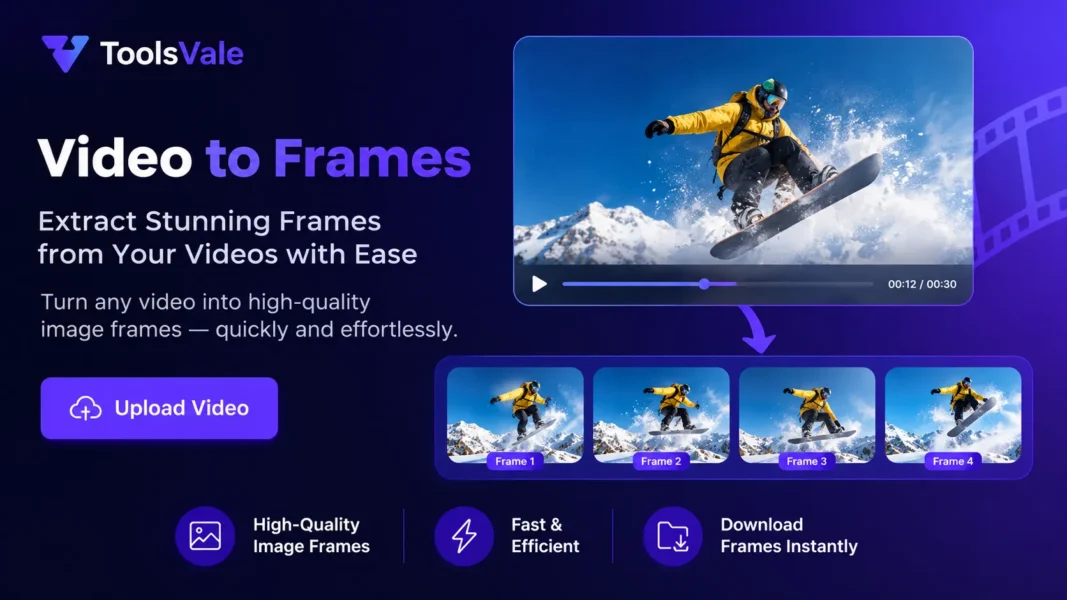
From toolsvale Video Frame Extractor — you can Extract Frames from Any Video Online Free in your browser
You have a 90-second clip from a dashcam, a product demo recording, or an animation test render. Somewhere inside it is the exact frame you need — a crisp still image for a thumbnail, a reference shot for a client deck, or a sequence of frames for a machine-learning dataset. The video player’s pause-and-screenshot trick isn’t cutting it: overlays, compression artefacts, and misaligned timing keep getting in the way.
That’s the problem a dedicated video frame extractor solves. It reads a video file, lets you choose how many frames to capture and from which section, and hands you back clean still images at the video’s native resolution. No letterboxing. No play-button overlay burned into the export. No guessing whether you got the right millisecond.
This guide covers what a video frame extractor actually does under the hood, the real-world situations where it saves hours of work, and a walkthrough of how to use ToolsVale’s free Video to Frames tool — which runs entirely inside your browser without uploading a single byte to a server.
What Is a Video Frame Extractor?
A video is a sequence of still images played back fast enough to simulate motion. A standard 30fps clip contains 30 individual images for every second of footage. A video frame extractor is a tool that decodes this stream and saves one or more of those individual images as standalone picture files — typically JPG, PNG, or WebP.
The distinction between a frame extractor and a screenshot is important. When you pause a video and take a screenshot, you’re capturing whatever is on your screen at that instant, including the player chrome, any on-screen display elements, and whatever downscaling or colour management your OS applied. A frame extractor bypasses all of that. It works directly with the video file’s decoded pixel data and exports frames at the source resolution with no external interference.
Why Would You Need to Extract Frames from a Video?
Frame extraction sounds like a niche task until you realise how many workflows depend on it.
YouTube and Social Media Thumbnails
Engagement on YouTube, Instagram, and TikTok is heavily driven by thumbnail quality. Rather than staging a separate photo shoot for each video, creators extract the most visually compelling frame from the footage itself. A frame extractor lets you scrub through the entire timeline, find that perfect expression or product angle, and download it at full resolution without re-encoding the video.
Animation and Motion Reference
Animators and motion designers regularly need to study movement frame by frame. Extracting every frame from a reference clip — whether it’s a walk cycle, a fabric simulation, or a sports play — produces a sequential image set that can be pinned to a reference board, imported into drawing software, or printed on a contact sheet.
Machine Learning and Computer Vision Datasets
Training an object-detection or classification model often starts with video footage from a camera sensor. Researchers extract frames from video at regular intervals to build labelled image datasets, and need control over the frame rate to avoid near-duplicate samples. A custom FPS setting (say, 2 frames per second from a 30fps source) keeps dataset size manageable while preserving temporal coverage.
Security and Legal Evidence
Dashcam and CCTV footage often needs to be reduced to a handful of clear stills for an insurance claim, a police report, or an internal incident review. Frame extraction produces timestamped images at the video’s native quality — far sharper than a phone photo of a paused screen.
E-Commerce Product Shots
Brands shooting product videos can extract specific frames to reuse as listing photos, avoiding a second photo shoot. A rotating product demo yields dozens of angles, each available as a separate downloadable image.
Education and Tutorials
Instructors building slide decks, worksheets, or step-by-step guides from recorded demonstrations can pull the exact frame that shows a completed step, a labelled diagram, or a critical moment, and drop it directly into their materials.
What to Look for in a Video Frame Extractor Tool
Not all frame extractors are built the same way. Here are the criteria that separate a tool you’ll actually keep using from one you’ll abandon after the first try.
Privacy: Where Does Your Video Go?
Many online tools require you to upload your video to a remote server. That means your file — including unreleased footage, client work, personal recordings, or material under NDA — temporarily sits on infrastructure you don’t control. A browser-based extractor that processes video locally on your device sidesteps this entirely. If you can turn off Wi-Fi after loading the page and the extraction still works, the tool is genuinely local.
Format Support
At minimum, a useful extractor handles MP4 and WebM — the two formats natively supported by every modern browser. Better tools extend support to MOV (common on Apple devices), MKV (popular for archival and high-bitrate content), and AVI (legacy but still encountered in industrial workflows).
Capture Rate Flexibility
A fixed “grab one frame” interface is fine for thumbnails. But storyboards, datasets, and animation references need batch extraction at configurable intervals. Look for presets (1fps, 5fps, 10fps, every frame) alongside a custom FPS input.
Time-Range Trimming
If you only need frames from a 4-second segment of a 20-minute file, the tool should let you set a start and end time rather than forcing you to extract from the entire video and delete what you don’t need.
Output Format and Quality Control
JPG is the most compact option for web use. PNG is lossless and preserves every pixel, making it right for datasets and evidence. WebP offers a middle ground. An adjustable quality slider for lossy formats adds another layer of control.
Batch Download
Extracting 200 frames and downloading them one at a time defeats the purpose. ZIP export is essential for any batch workflow.
How ToolsVale’s Video to Frames Tool Works
ToolsVale’s Video to Frames extractor is a free, browser-based tool designed around the criteria above. Here’s what happens when you use it.
Step 1: Drop Your Video File
Drag a video onto the tool or click to browse. The tool checks whether your browser can play the file natively. MP4 and WebM load in Basic mode, which uses your browser’s built-in video decoder. MOV, MKV, and AVI trigger Advanced mode automatically, loading a WebAssembly build of FFmpeg (~25–30 MB, cached for the session) to decode formats your browser can’t handle natively. You don’t need to choose a mode — the tool detects the format and switches for you.
Step 2: Set Your Capture Rate and Time Range
Choose from several presets or enter a custom value:
- Every frame — captures each native frame. Uses
requestVideoFrameCallbackfor accurate timing. - Fixed rates — 10fps, 5fps, 2fps, 1fps, or one frame every two seconds.
- Custom FPS — any value between 0.05 and 60.
Optionally, set a start and end time to limit extraction to a specific scene. Click “use current” to snap the value to the current playback position.
Step 3: Extract, Review, and Download
Hit “Extract frames” and wait for the grid to populate. Each frame appears as a timestamped thumbnail. Select or deselect individual frames, use bulk controls, and download one at a time or all selected as a single ZIP archive. Output can be saved as JPG, PNG, or WebP, with an adjustable quality slider and a configurable safety cap (up to 2,000 frames per run).
How ToolsVale Compares to Other Video Frame Extractors
Upload-Based Extractors
Tools like FlexClip and Flixier require uploading your video to their servers. That introduces transfer time and a privacy trade-off. ToolsVale processes everything locally — your file never leaves your device.
Single-Frame Grabbers
Some tools let you grab only one frame at a time. This works for the occasional thumbnail but becomes impractical the moment you need 50 or 200 frames. ToolsVale’s batch extraction with configurable FPS covers both workflows.
Desktop Software (VLC, FFmpeg)
VLC’s scene filter and FFmpeg’s command-line flags are powerful but require setup. ToolsVale puts the same FFmpeg engine (compiled to WebAssembly) behind a visual interface — you get the format coverage without memorising flags.
ToolsVale’s Edge
The combination of fully local processing, dual-engine format support (native browser playback plus FFmpeg WASM), flexible capture rates with custom FPS, time-range trimming, and ZIP batch export is the specific set of features that most competing tools deliver only partially. And because it runs on your device, it works offline after the initial page load.
Tips for Getting the Best Results
Match the capture rate to your goal. Extracting every frame from a 60fps, 10-minute clip produces 36,000 images. For thumbnails, try 1fps and scan the grid. For animation reference, match the source framerate. For datasets, 2–5fps works well.
Use the time-range trim. If the scene you need is at 1:24–1:31, set the range before extracting. You’ll get exactly those frames instead of thousands of irrelevant ones.
Choose the right output format. JPG for web thumbnails (smallest file size). PNG for ML datasets and forensic evidence (lossless). WebP for the best compression-to-quality ratio.
Watch the frame cap. The default safety cap is 400 frames per run, adjustable up to 2,000. For more frames, run multiple extractions on different time ranges.
Edit frames after extraction. ToolsVale’s Crop Image and Compress Image tools handle post-extraction editing with the same browser-only, no-upload approach.
Technical Detail: Basic Mode vs. Advanced Mode
Basic mode uses the HTML5 <video> element and the Canvas API. The browser decodes the video, the tool seeks to the target timestamp, draws the current frame onto an off-screen canvas, and exports it as an image. The “every frame” option uses requestVideoFrameCallback — a browser API that fires on each rendered frame for sub-frame-accurate timing.
Advanced mode downloads a WebAssembly build of FFmpeg on first use. FFmpeg is the industry-standard tool for video processing, and compiling it to WASM means it runs inside a browser tab with no server involvement. This handles codecs and containers that browsers can’t play natively (HEVC in MKV, ProRes in MOV, older AVI codecs).
Both modes keep the video data entirely on your device. No frame, thumbnail, or metadata is transmitted anywhere.
Frequently Asked Questions
Does the tool upload my video?
No. All decoding and frame capture happen inside your browser. The file never leaves your device. You can verify by disconnecting from the internet after the page loads — extraction completes normally.
What video formats are supported?
MP4 and WebM work instantly in Basic mode. MOV, MKV, and AVI are handled by Advanced mode (FFmpeg WASM).
Can I extract every single frame?
Yes. Select “Every frame” as the capture rate. Use the time-range trim and frame cap for long videos.
Is there a file-size limit?
No hard limit. Very large files use more browser memory since processing is local. Trim the time range or reduce the capture rate if your device has limited RAM.
Do extracted frames have a watermark?
No. Frames are exported exactly as decoded — no watermark, no branding.
Do I need to create an account?
No. The tool is fully functional without any signup.
Can I use extracted frames commercially?
The tool places no restrictions on output usage. Rights to the source video are your responsibility.
Wrapping Up
A reliable video frame extractor turns a video file into exactly the still images you need — at the right resolution, from the right moment, in the right format, without uploading anything to a server or installing anything on your machine. Whether you’re pulling a single thumbnail, building a 500-image training set, or creating a frame-by-frame reference sheet, ToolsVale’s Video to Frames tool handles the job directly in your browser.
Try the Video to Frames tool →
Sign in to share your opinion
Sign in with Google